Moodle - Grading an Assignment - Quick Grading (staff/faculty)
- Jason 1keddie
- Tri Ningsih
Quick grading allows you to enter grades and feedback directly into the submissions table. This strategy works well if you simply want to enter grades and/or online feedback (but not upload a feedback file).
Continue with the video or skip to the text instructions
Steps:
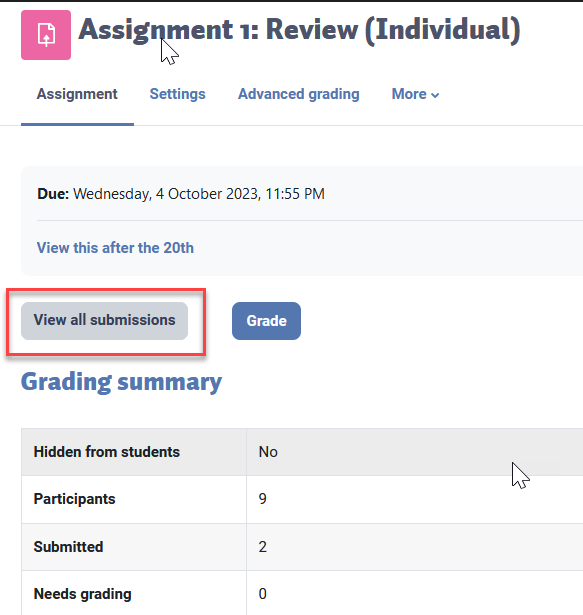
Navigate to the assignment and then click on the View all submissions button.
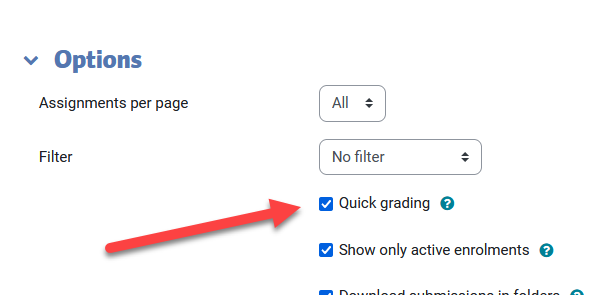
Enable quick grading by scrolling down to Options and ticking the box for Quick grading.
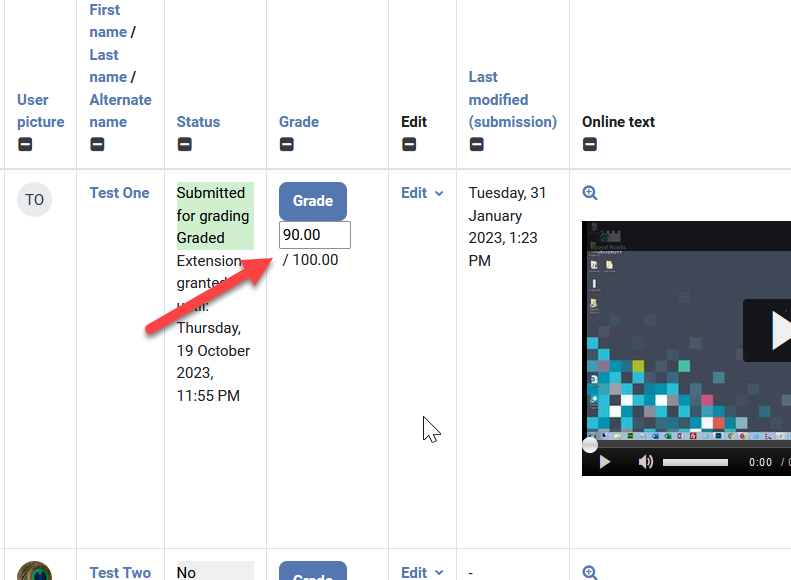
Once quick grading is enabled, you will be able to enter grades and feedback comments directly into the submissions table.
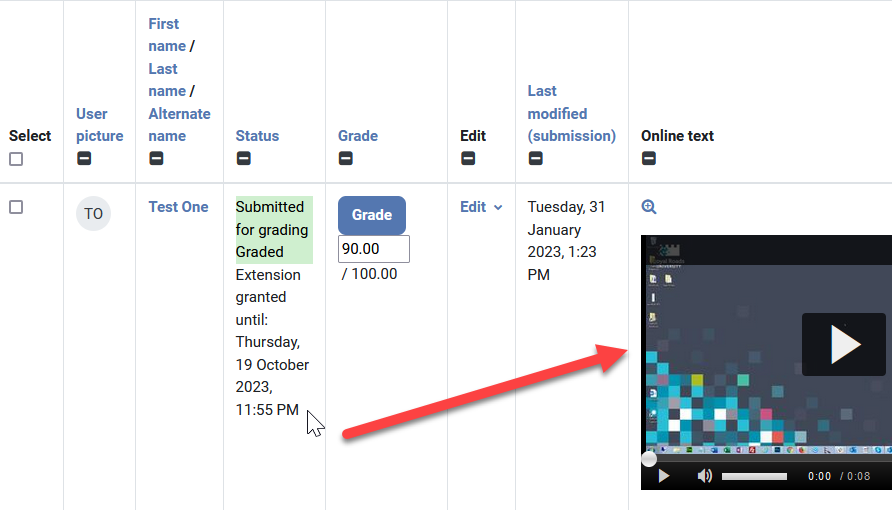
In this particular example, the student has submitted a video link for her assignment. As the grader, you can watch the video and enter a grade and feedback into the submissions table.
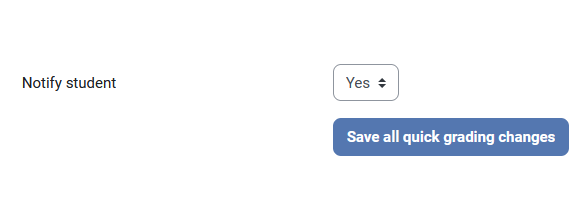
Optional: If you'd like to notify students that their grades and feedback have been submitted, set Notify students to Yes under the submissions table.
Finally, click the Save all quick grading changes button to save your changes. Note that Moodle will automatically log you out after a couple hours of inactivity, so save your changes if your grading session takes longer or if you plan to be away from your computer.
Related Articles
Filter by label
There are no items with the selected labels at this time.
How to Contact the Computer Services Department
Submit a ticket
To submit a ticket, you will be required to log in using your FULL Royal Roads email address (detailed instructions here)
New! If you do not have a full RRU email address (students not currently in a credit program and/or visitors), you can create a portal account using your personal email address.
Email us at IT Customer Service
Contact Form
Phone: 250-391-2659 Toll Free: 1-866-808-5429
Come visit us in the Sequoia Building
Hours of Operation